CTA Banner

Overview

A Call-To-Action (CTA) component designed to guide users toward related pages or next steps. Typically placed near the bottom of a page, it features a few prominent, well-styled links that encourage continued exploration or engagement.

Example

How to add a CTA banner

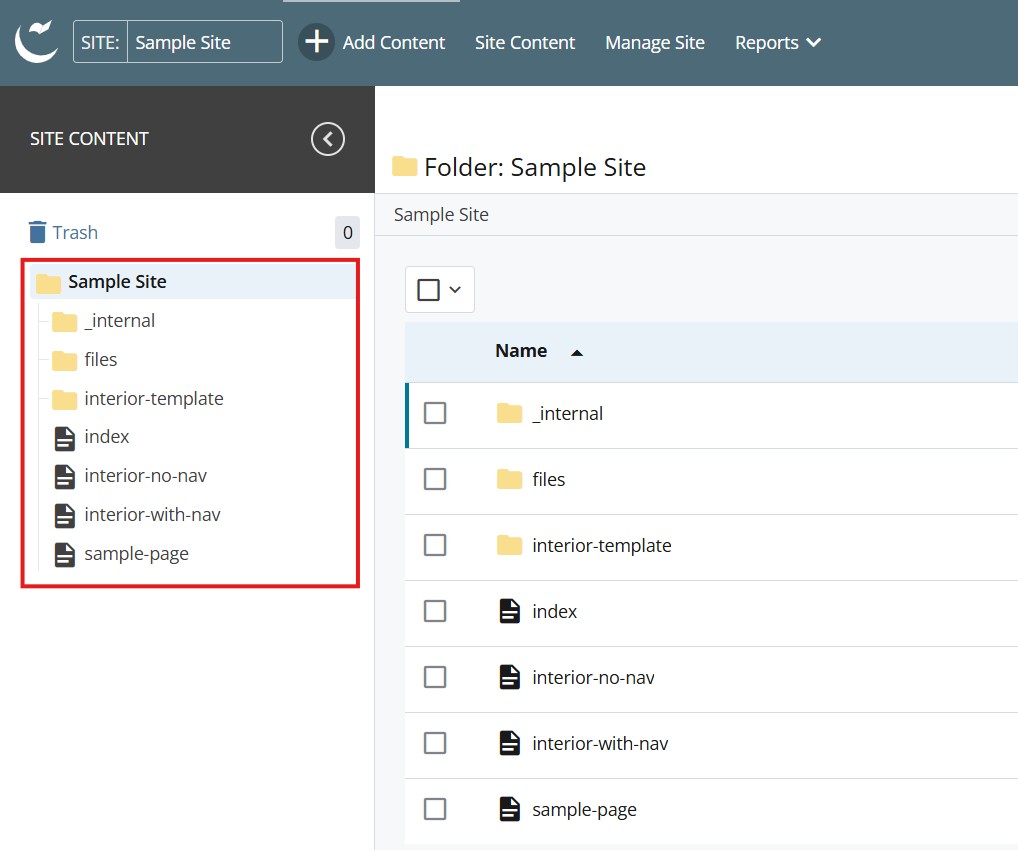
  1. Log into Cascade CMS and select your site.
  2. Navigate to the page where the CTA Banner will be added.

    Step 1

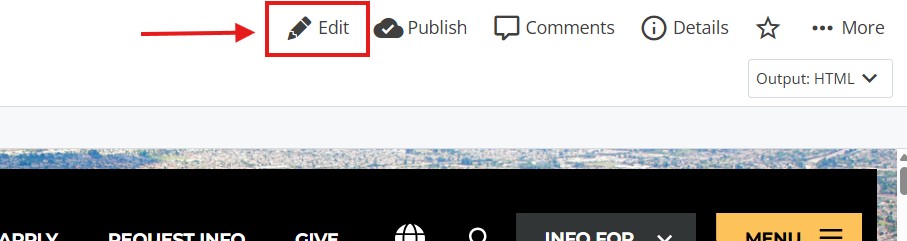
  3. Select Edit.

    Step 3

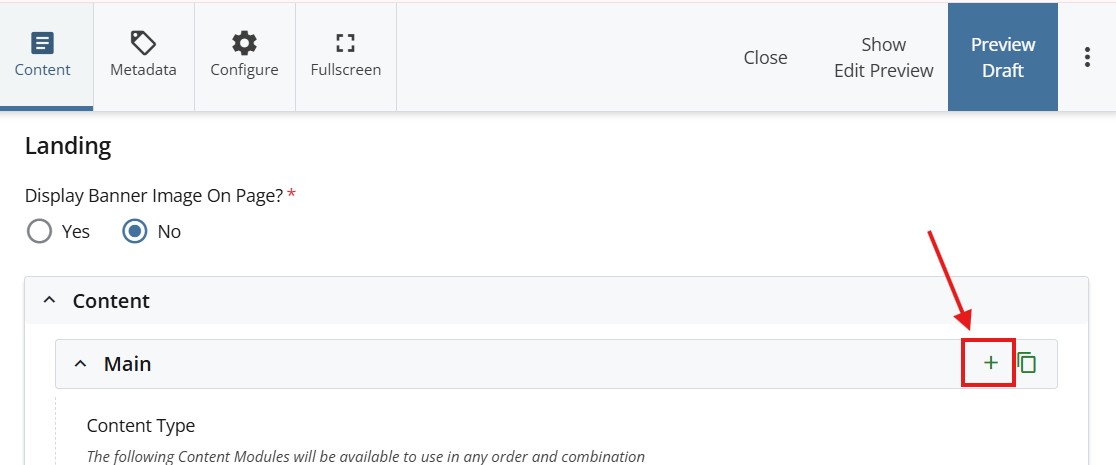
  4. Select + icon on Main to add a new content type.

    step 4

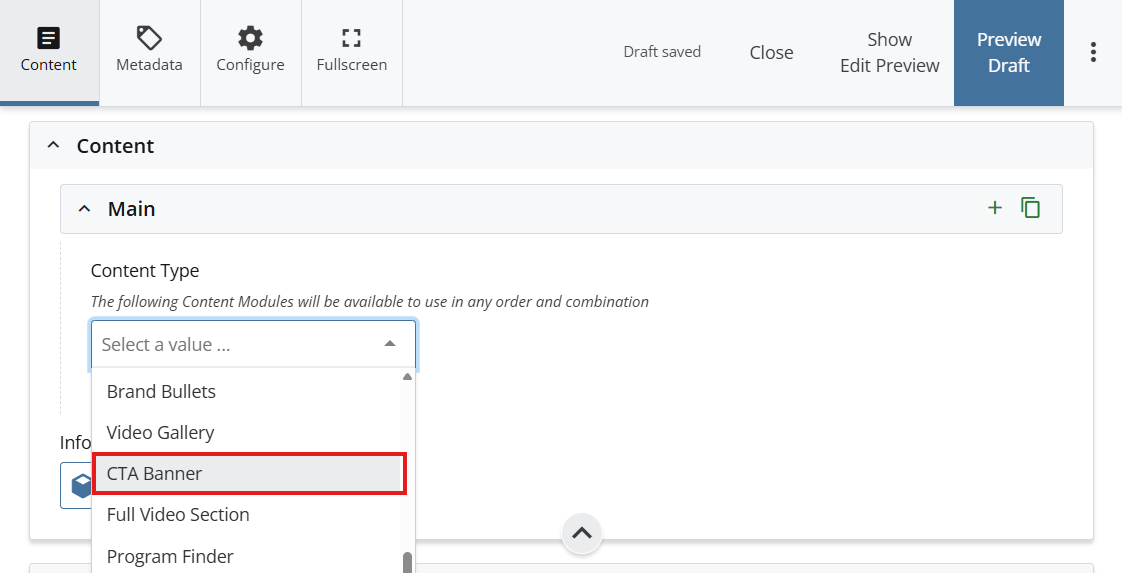
  5. Select CTA Banner in the newly added content type.

    content type

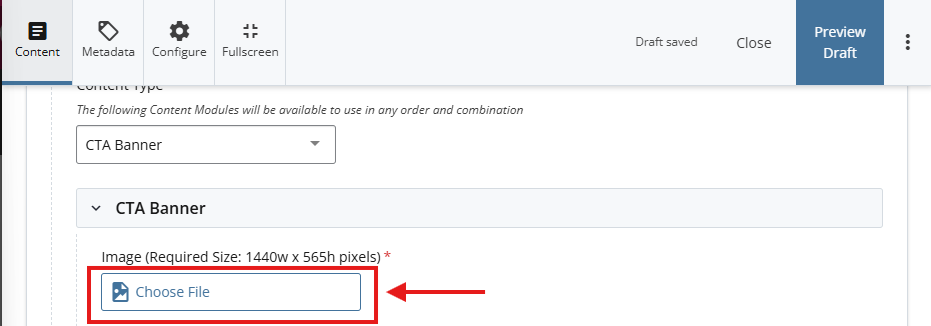
  6. Select Choose File to select an image that is 1440w by 565h pixels for the background. 
    image
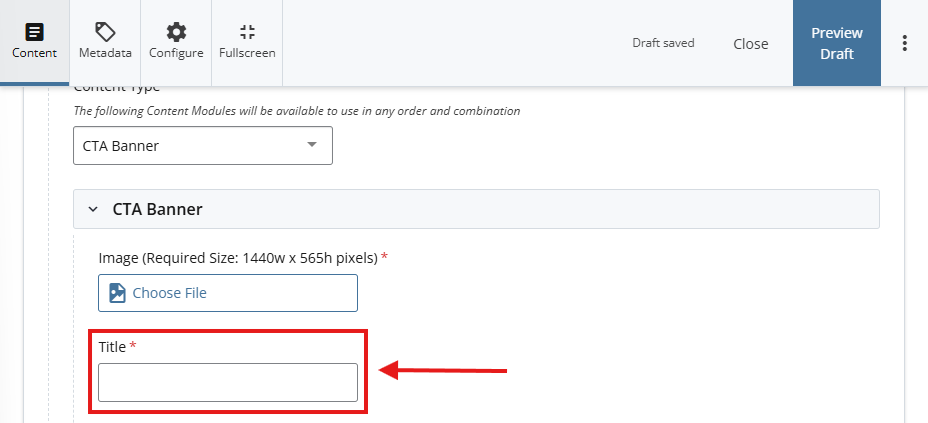
  7. Add a title
    title
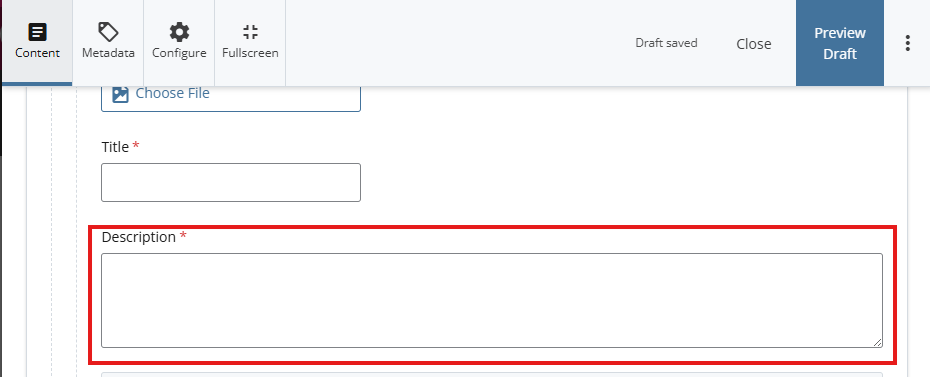
  8.  Add a Description
    description
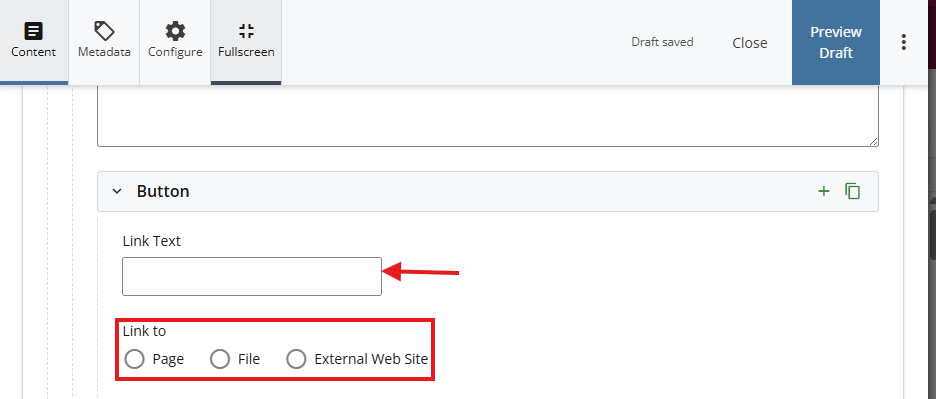
  9. *OPTIONAL STEP: Add a Button*
    Add a title under Link Text
  10. Attach a link using one of the options under Link to
    add a button
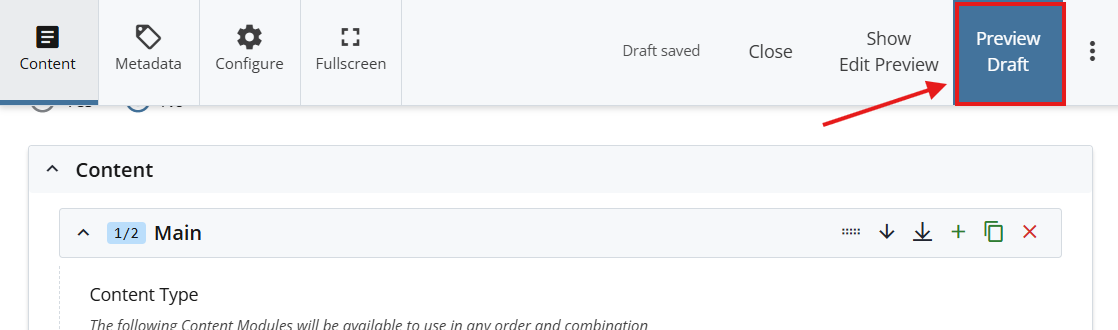
  11. Select Preview Draft.

    Preview draft

  12. After previewing changes made, select Submit.

    submit

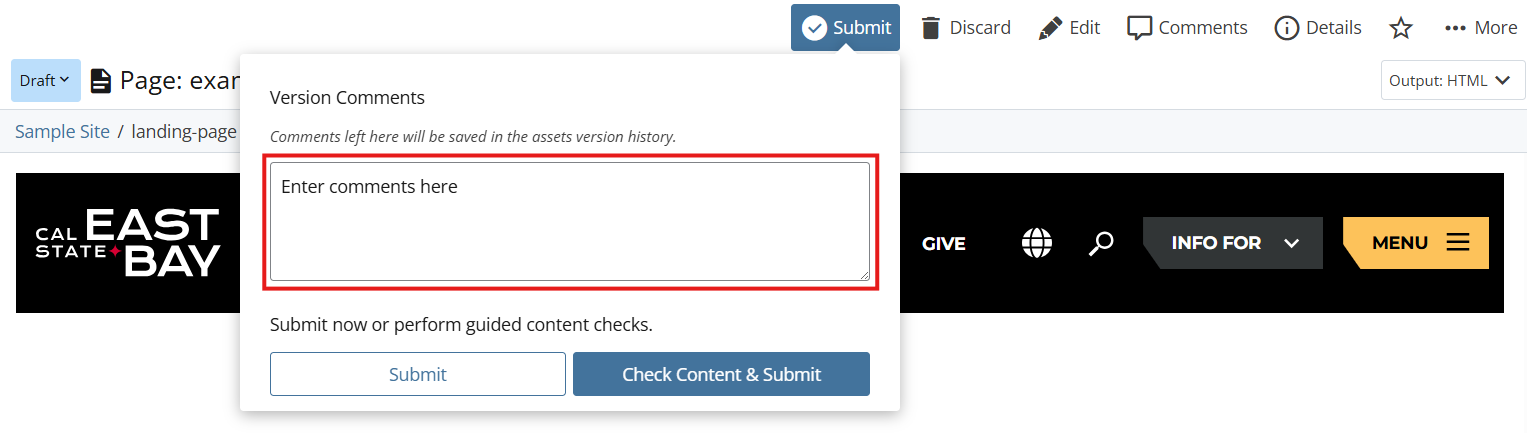
  13. Enter Comments for changes made.

    enter comments

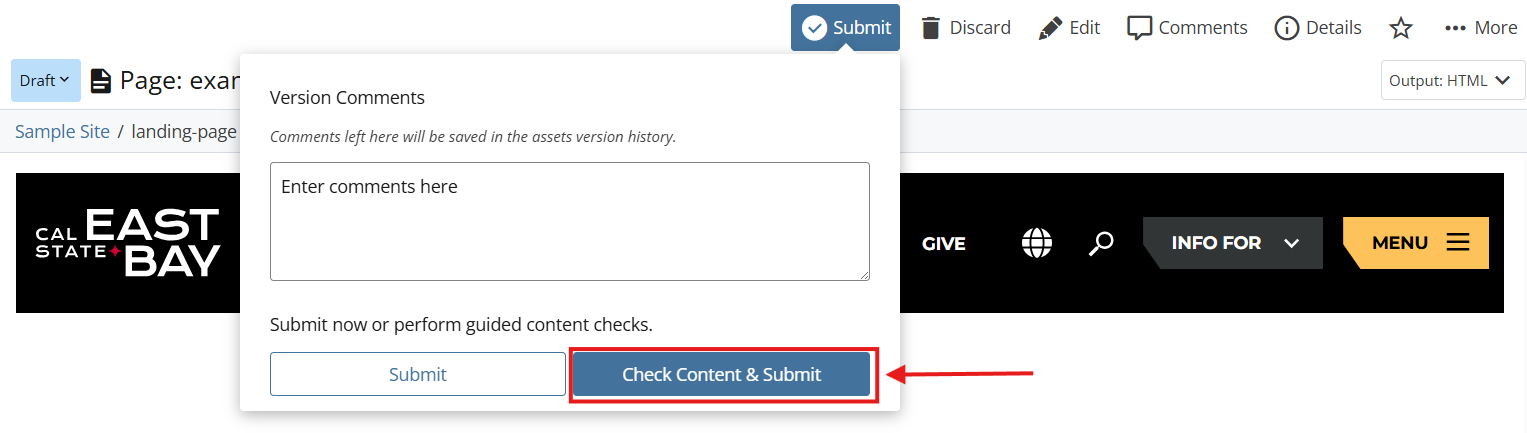
  14. Select Check Content & Submit to add changes to your site.

    check content

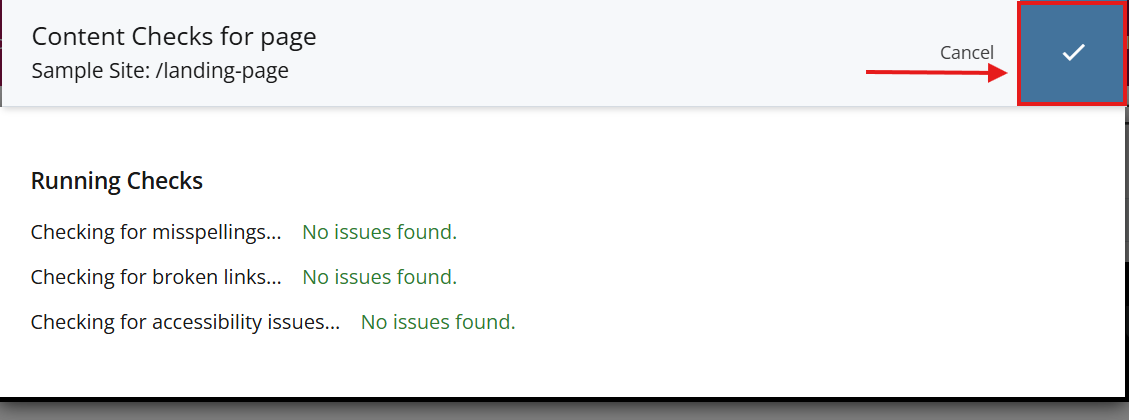
  15. Select the Check Box.

    check box

  16. When you're ready to go live, the last step is to publish the changes.