Video Gallery

Overview

A structured layout designed to showcase multiple videos in one view. Each video features a title and can be played directly from the page, making it ideal for highlighting stories, programs, or campus experiences.
Example

How to add a Video Gallery

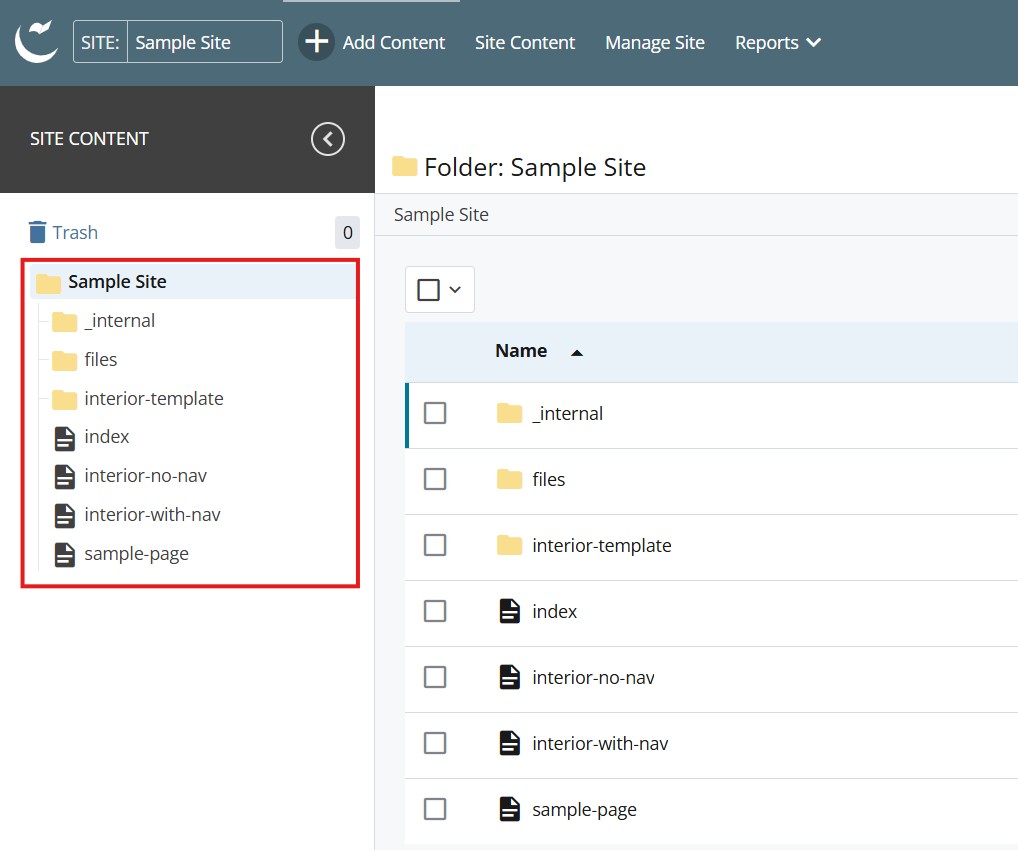
  1. Log into Cascade CMS and select your site.
  2. Navigate to the page where the Video Gallery will be added.

    Step 1

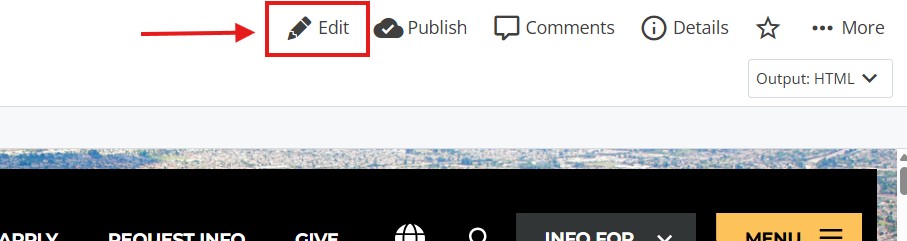
  3. Select Edit.

    Step 3

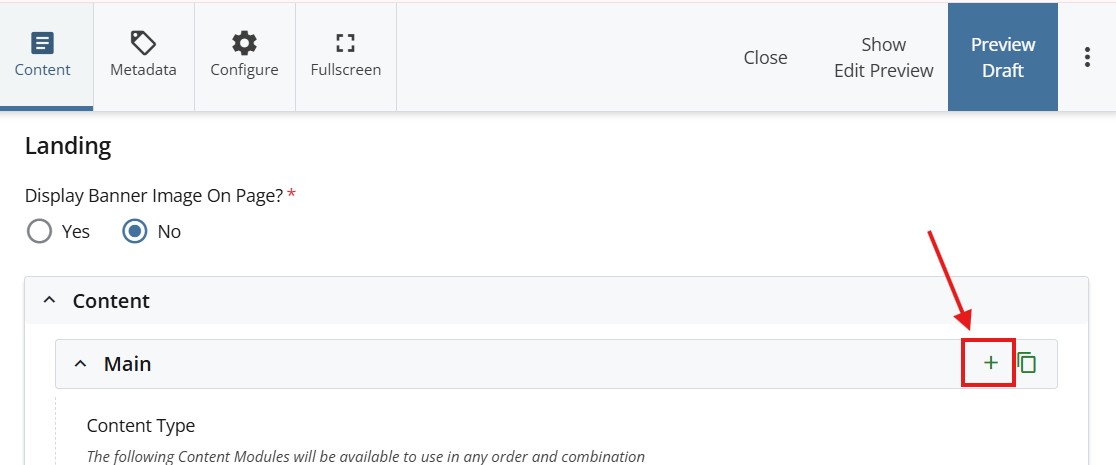
  4. Select + icon on Main to add a new content type.

    step 4

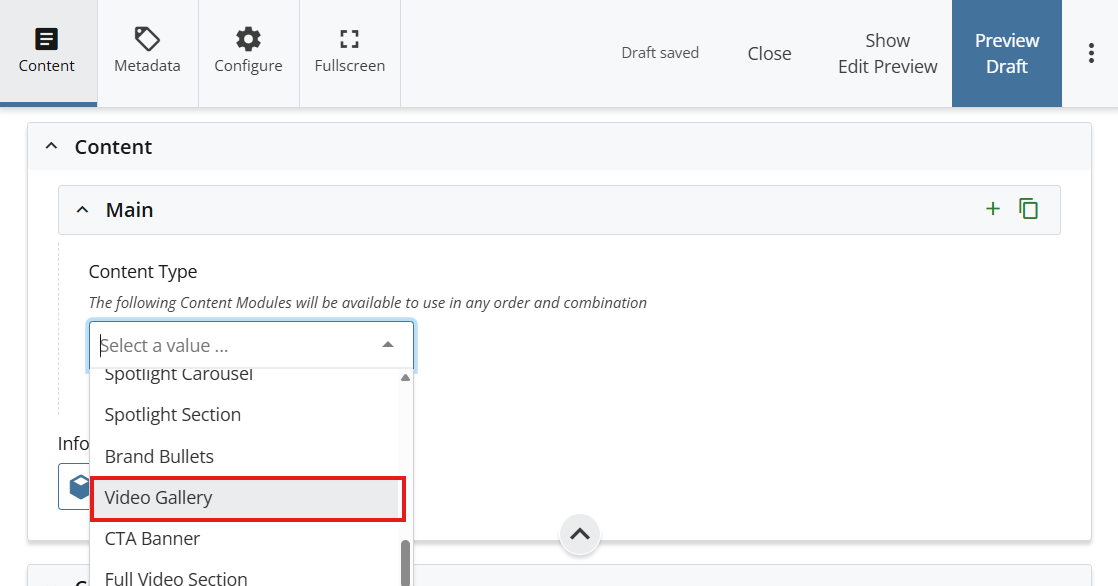
  5. Select Video Gallery in the newly added content type.

    content type

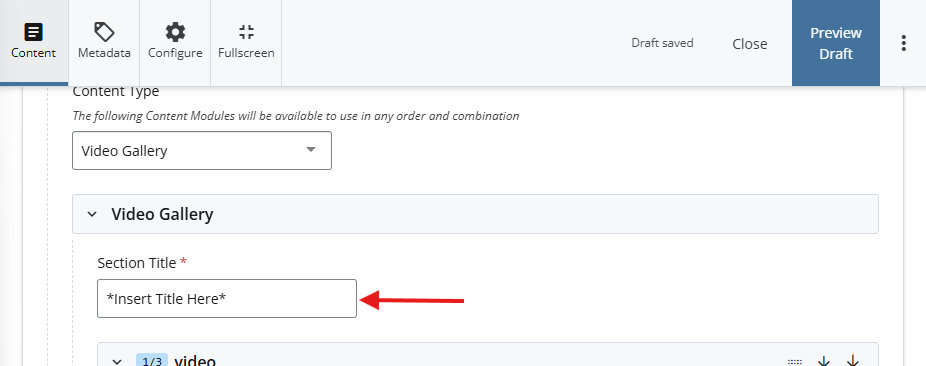
  6. Add a Section Title.
    section title
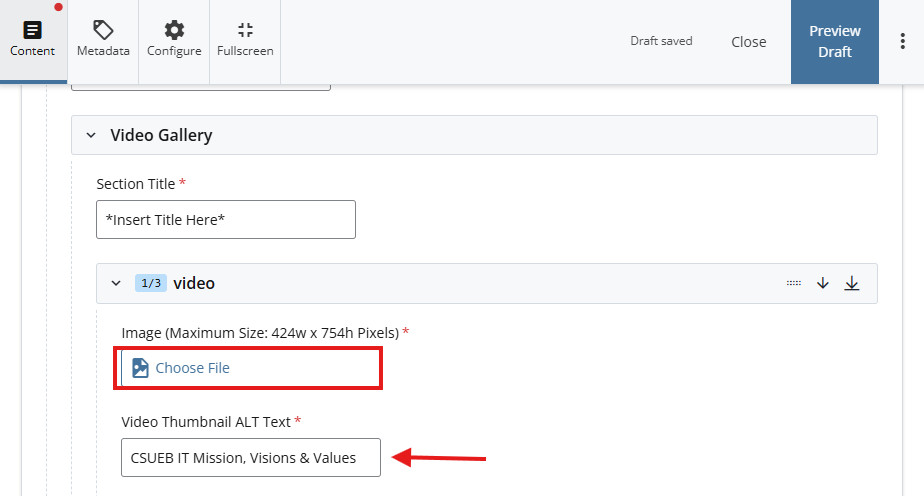
  7. Select Choose File to select an image that is 424w by 754h pixels for the image.
  8. Add a short description of the image in the ALT Text field.image
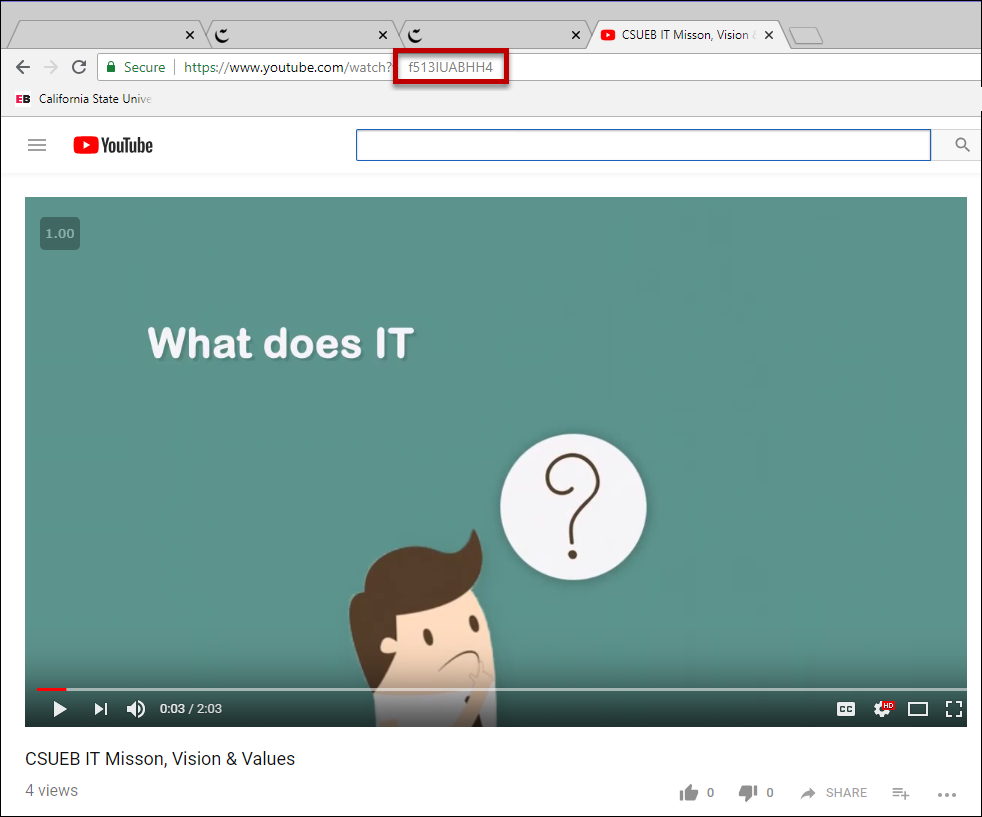
  9. Copy the YouTube Video ID.
    *Note, the video ID could be found in the URL.  The last 11 characters is the video ID.
    In our example our YouTube ID is "f513IUABHH4".

    video id url

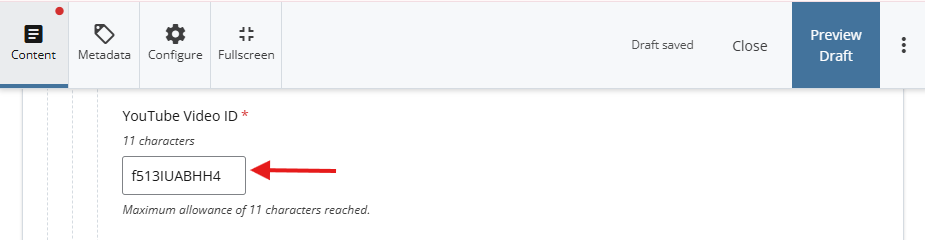
  10. Enter the Video ID in the field.
    video ID
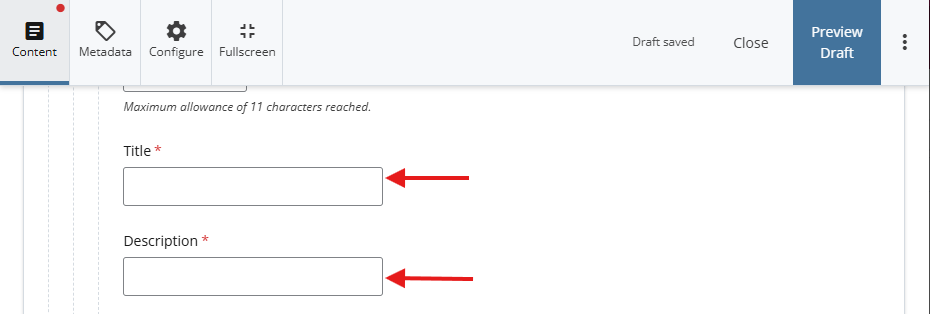
  11. Add a Title and Description
    title and description
  12. Repeat step 7- step 11 to add two more videos on the gallery
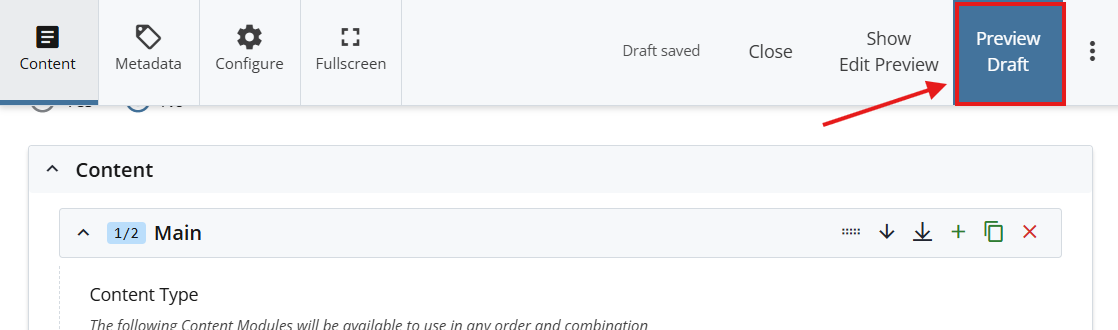
  13. Select Preview Draft.

    Preview draft

  14. After previewing changes made, select Submit.

    submit

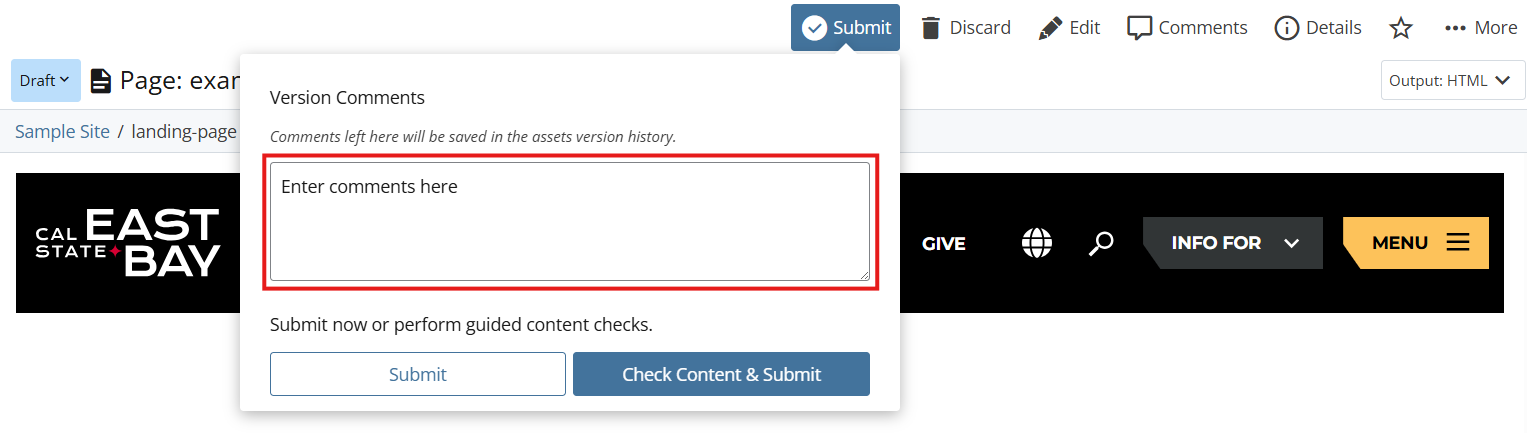
  15. Enter Comments for changes made.

    enter comments

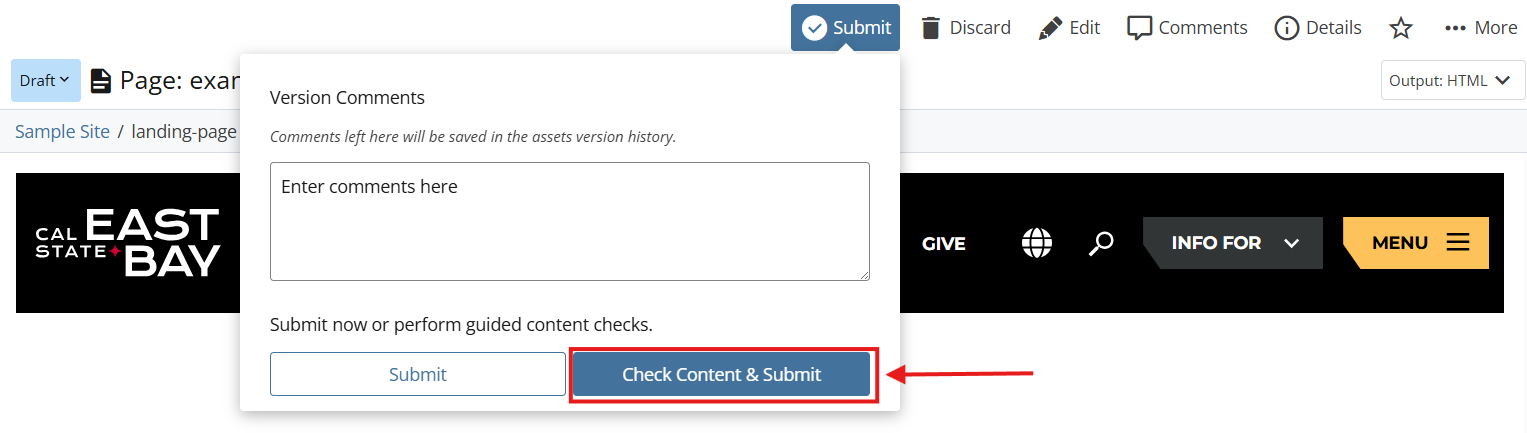
  16. Select Check Content & Submit to add changes to your site.

    check content

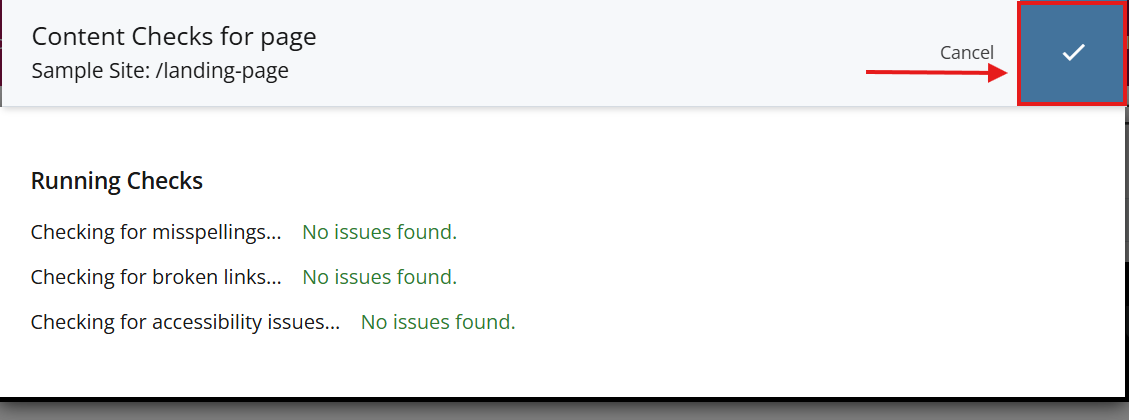
  17. Select the Check Box.

    check box

  18. When you're ready to go live, the last step is to publish the changes.