Spotlight Carousel
Overview
A dynamic image(s)-and-text layout ideal for displaying a series of visuals in a compact format. Perfect for featuring testimonials, partner logos, or event photos while maintaining visual impact and clarity.
Example
How to add a Spotlight Carousel
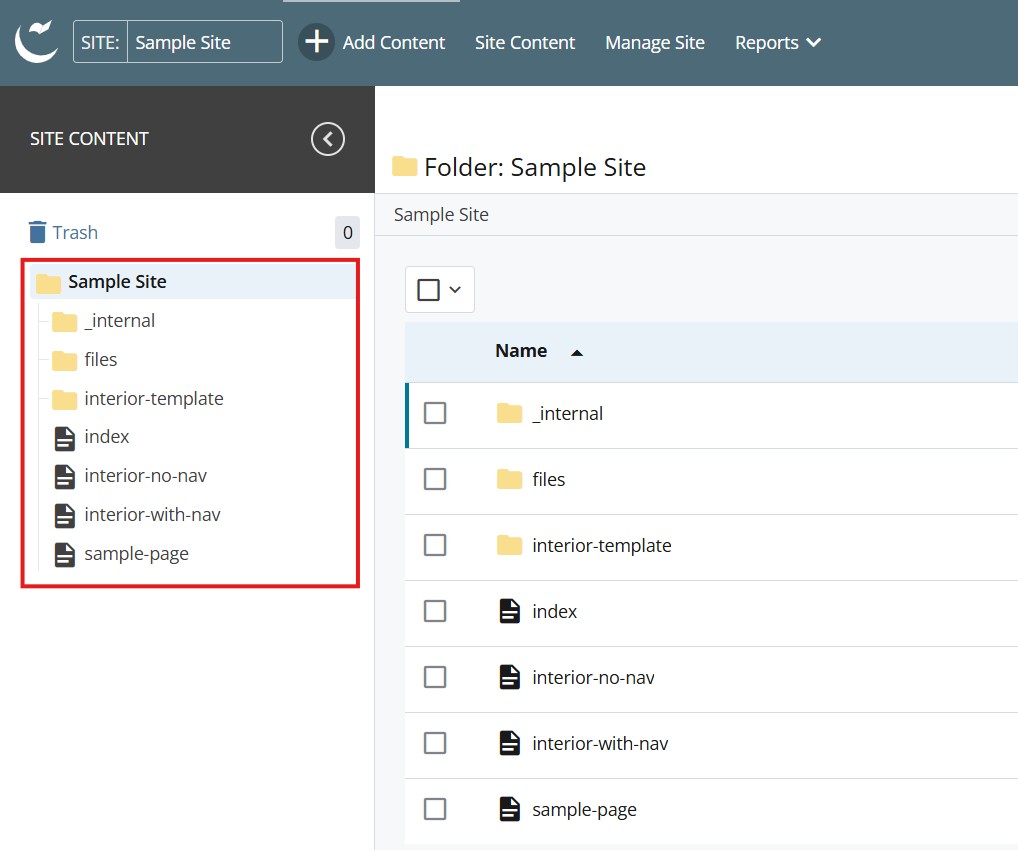
- Log into Cascade CMS and select your site.
- Navigate to the page where the Spotlight Carousel will be added.

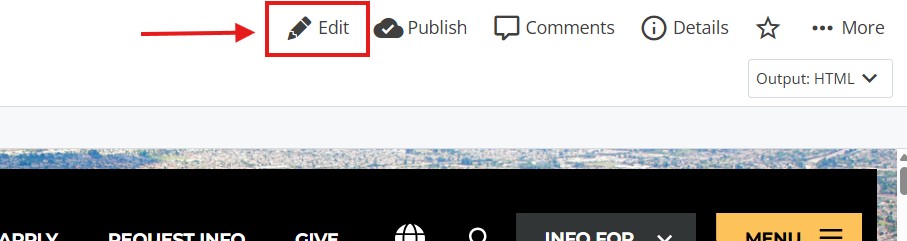
- Select Edit.

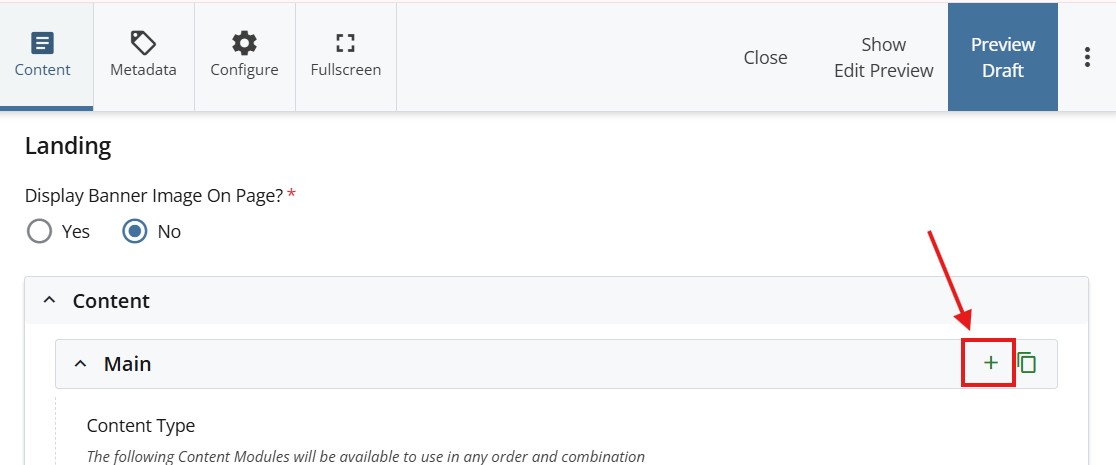
- Select + icon on Main to add a new content type.

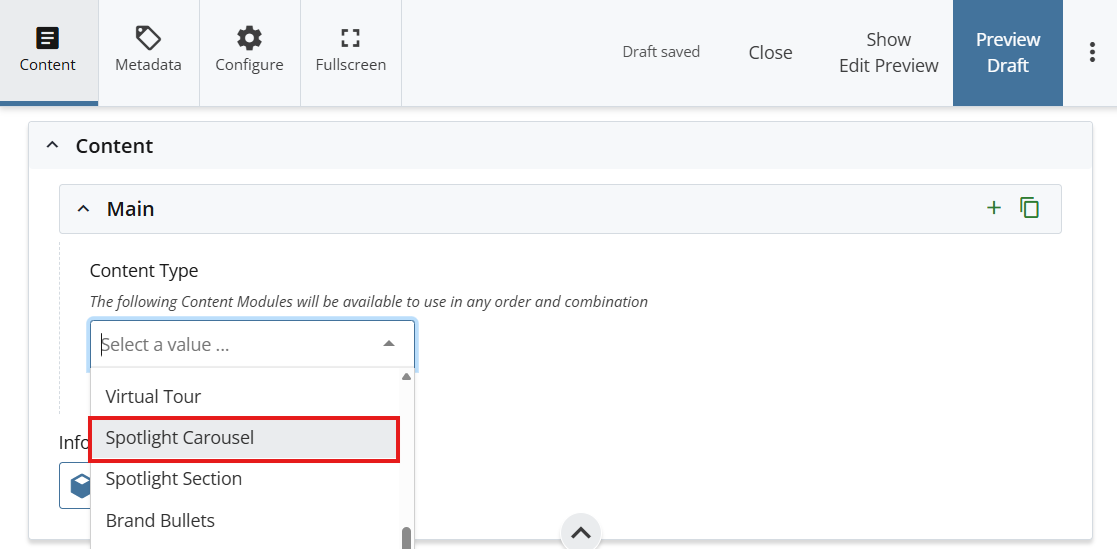
- Select Spotlight Carousel in the newly added content type.

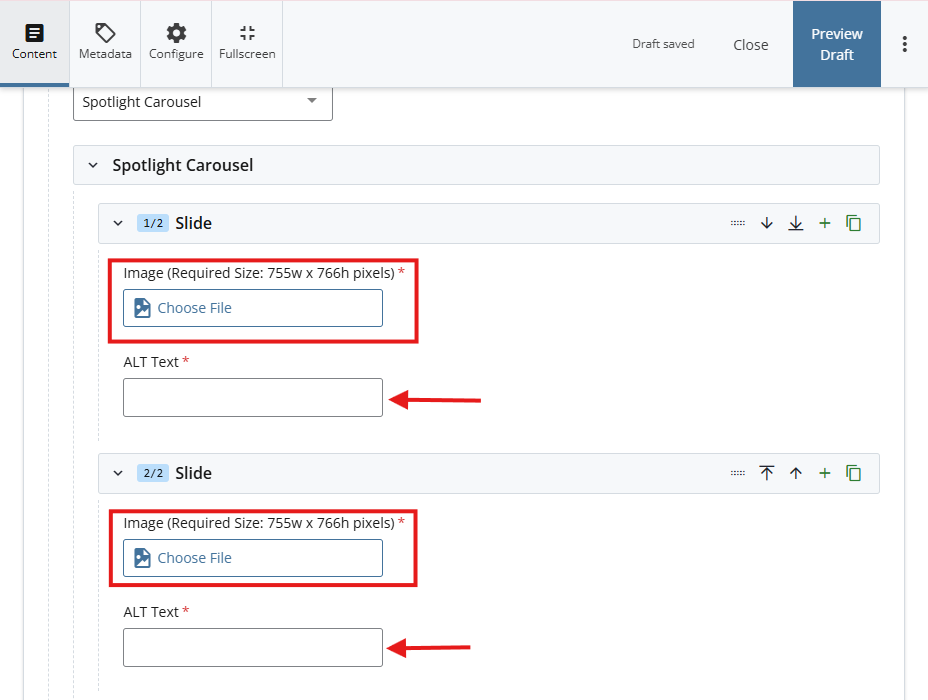
- Select Choose File to select an image that is 755w by 766h pixels for the image.
- *Note:Add a minimum of two images*
- To add more than two images, select the + icon
- Add a short description of the image in the ALT Text field.

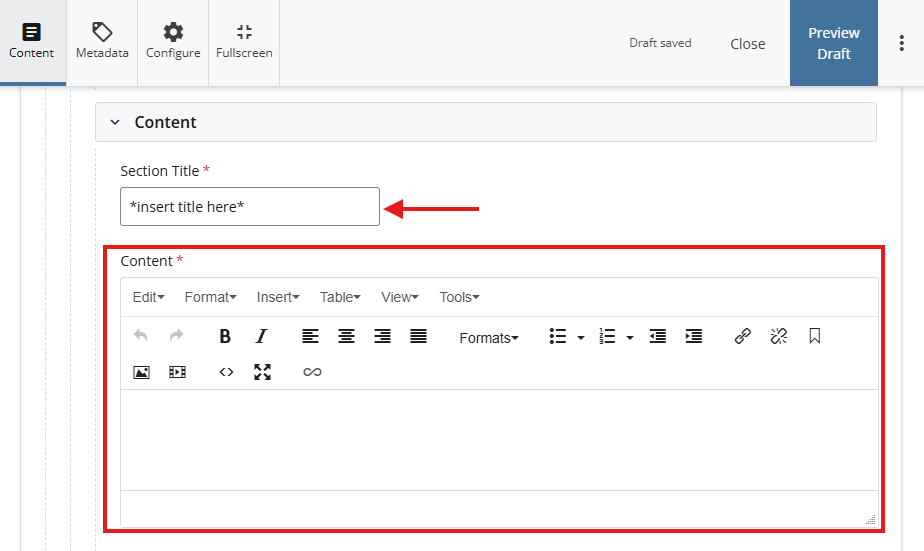
- Add a Section Title for the Spotlight
- Under Content, add the text on the WYSIWYG editor.

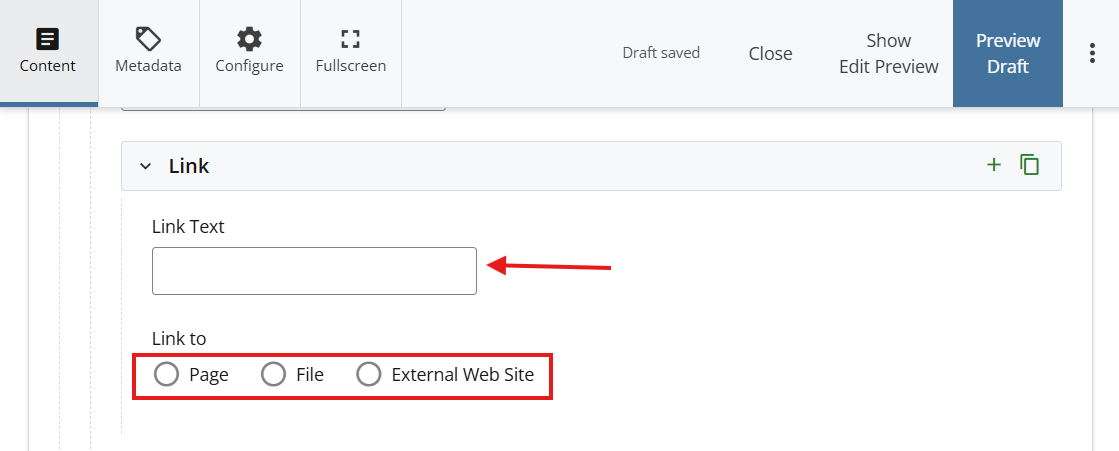
- *OPTIONAL STEP: Add a link*
Add a title under Link Text - Attatch a link using one of the options under Link to

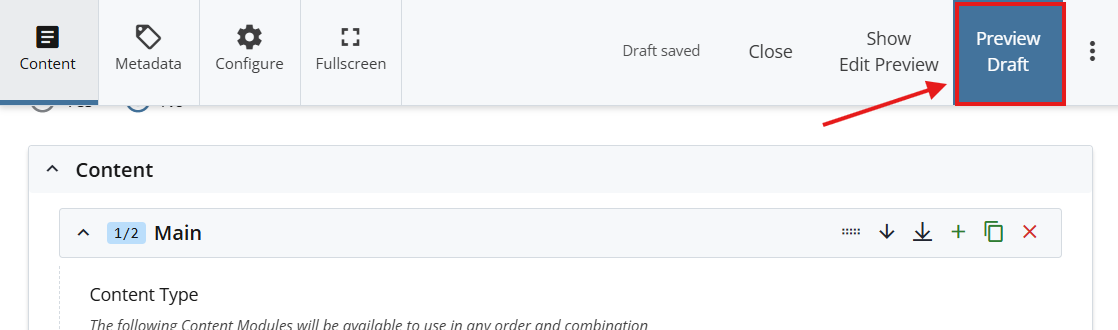
- Select Preview Draft.

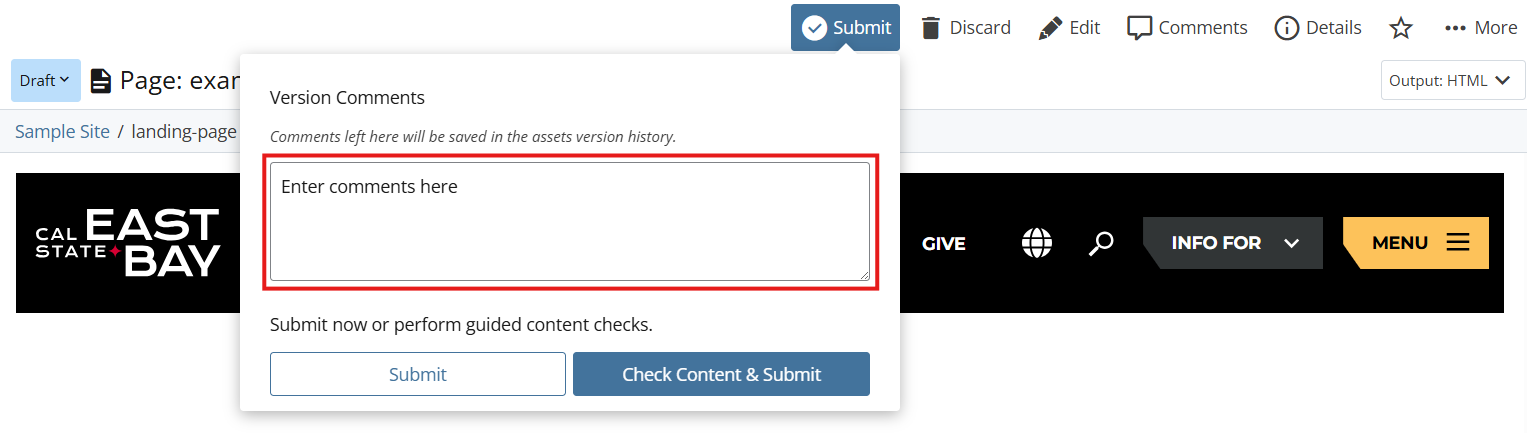
- After previewing changes made, select Submit.

- Enter Comments for changes made.

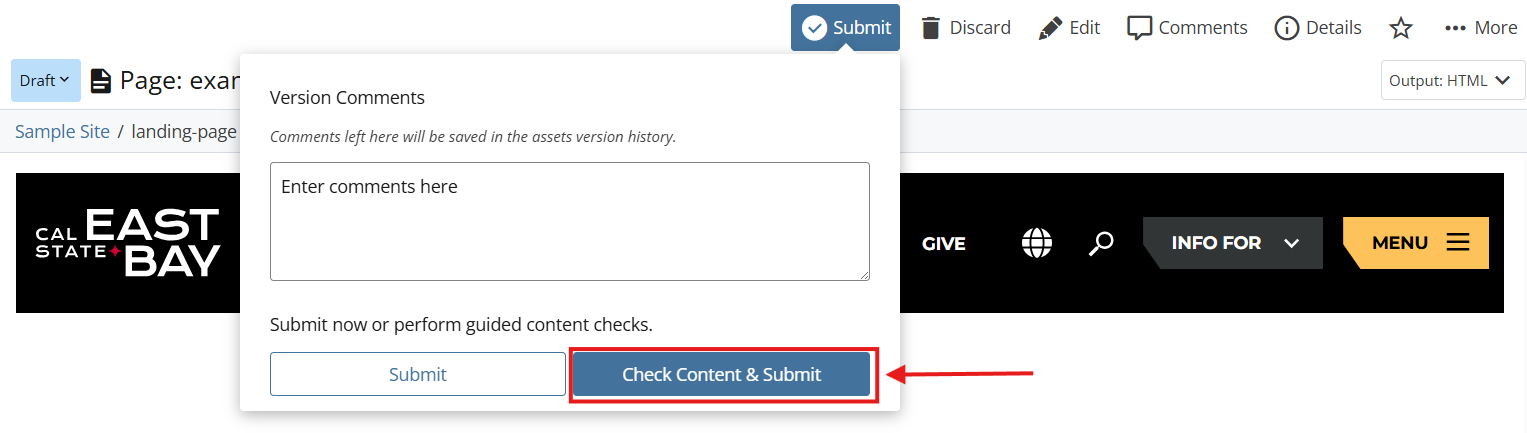
- Select Check Content & Submit to add changes to your site.

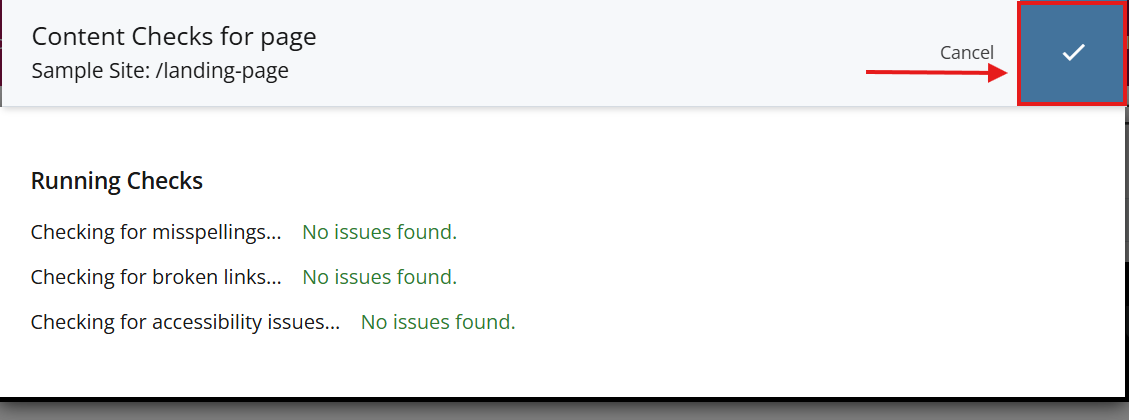
- Select the Check Box.

- When you're ready to go live, the last step is to publish the changes.